We hope to be able to answer many of your questions here in this FAQ but we understand you will very likely have other questions too. If you can’t find what you’re looking for here or on the rest of our website, we’d love it if you popped into our forums and ask whatever question(s) you need answering.
What is ClassicPress?
ClassicPress is a community-led fork of the WordPress content management system that preserves the classic TinyMCE editor as the default option. We want to get back to basics and focus on open dialogue and democratic decisions. To learn more, view our mission statement.
ClassicPress is released under the GNU General Public License version 2 (GPLv2) (or later) license from the Free Software Foundation. A copy of the license is included with every copy of ClassicPress, but you can also read the text of the license at https://www.gnu.org/licenses/old-licenses/gpl-2.0.en.html.
Among other things, the GPLv2 license requires that any code you write that derives from ClassicPress, and which you distribute for use by others, will automatically be covered by the GPLv2 license.
What is the difference between ClassicPress and Classic Editor?
ClassicPress is a community-led open source content management system (CMS) that was originally a fork of WordPress.
Classic Editor is the TinyMCE editor, used by WordPress for many years until the introduction of the block-based Gutenberg editor.
Who is ClassicPress for?
ClassicPress is the professonal-quality CMS for creators. Our tag-line is:
Stable. Secure. Instantly Familiar.
ClassicPress is a modified and enhanced version of WordPress (without Gutenberg) that serves website creators everywhere, whether you’re a hobbyist, freelance developer, an organization, group, or individual. If you want a stable, secure and instantly familiar CMS, then ClassicPress is for you.
What is your stance on backward compatibility?
ClassicPress follows SemVer and will never intentionally break backwards compatibility with a minor or patch release. If ClassicPress is updated to a new major release, it might break backwards compatibility and plugins and themes should be carefully tested before used.
ClassicPress Version 2.0 was forked from WordPress 6.2.x. Any plugins or themes that work on WordPress 6.2.x will generally work on ClassicPress version 2.0, except when the plugin or theme requires blocks.
WordPress is an excellent content management system and so we appreciate that it may be a daunting prospect to switch to a different system. All of us here at ClassicPress have backgrounds in creating or developing in WordPress, so we do know exactly how it feels.
You will find 12 good reasons why migrating from WordPress makes a whole lot of sense on our home page.
I need help with something else, what should I do?
If you have an issue with ClassicPress that you’d like some help resolving, go to our support forum and make a new topic. Be sure to search existing posts first to make sure your question hasn’t already been answered.
If you just have a question or want to chat with us about something, you can join our Zulip group.
Please remember that like all of ClassicPress, our support is a volunteer effort by the community. If you are able to help answer support questions in the forum, that is also more than welcome!
Can I convert a WordPress site to ClassicPress – and what if I don’t like it?
Yes, you can easily convert a WordPress site to ClassicPress using the migration plugin.
To roll back to WordPress, you can use the Advanced Version Control section of the migration plugin. This would be the easiest and fasted approach.
Alternatively, you can manually download any WordPress version and use that, after removing the wp-content folder.
To revert to it you delete all the files on the server via an FTP application, EXCEPT the wp-content folder and the wp-config.php file.
Upload the files you downloaded, EXCEPT the wp-content folder, and your site will be back to WordPress.
Please note that if you prefer to upload a zip and unpack it on the server, it will be in a wordpress folder and thus not in the root of your public_html, unless you tell it to unpack there.
What happens if I am using a theme that uses Blocks?
ClassicPress does not support blocks or the Block Editor. If the theme you want to use requires blocks you will need to continue using WordPress or choose another theme.
If you are on a WordPress site and using a theme that requires blocks, then the migration plugin will prompt you to switch to an alternative theme, before migrating to ClassicPress.
If you are planning to use, or are already using, a theme that uses blocks but is capable of working without them, then you should be able to use that theme with ClassicPress once you have disabled the blocks requirements.
ClassicPress also comes with a Blocks Compatibility mode. When blocks compatibility is turned on (default), it allows more themes to function with fewer or no errors but block-related features will not work.
Will my current plugins and themes work in ClassicPress?
All WordPress plugins and themes that require a WordPress version 6.2 or lower will generally work in ClassicPress. (For ClassicPress version 1 this was WordPress version 4.9 or lower.) WordPress plugins and themes explicitly requiring WordPress version 6.3 or higher are potentially incompatible with ClassicPress, although they might work.
If they require blocks, they will not work with ClassicPress and should not be used. If you’re experiencing something different, we’d appreciate you reporting it in the support forums or GitHub.
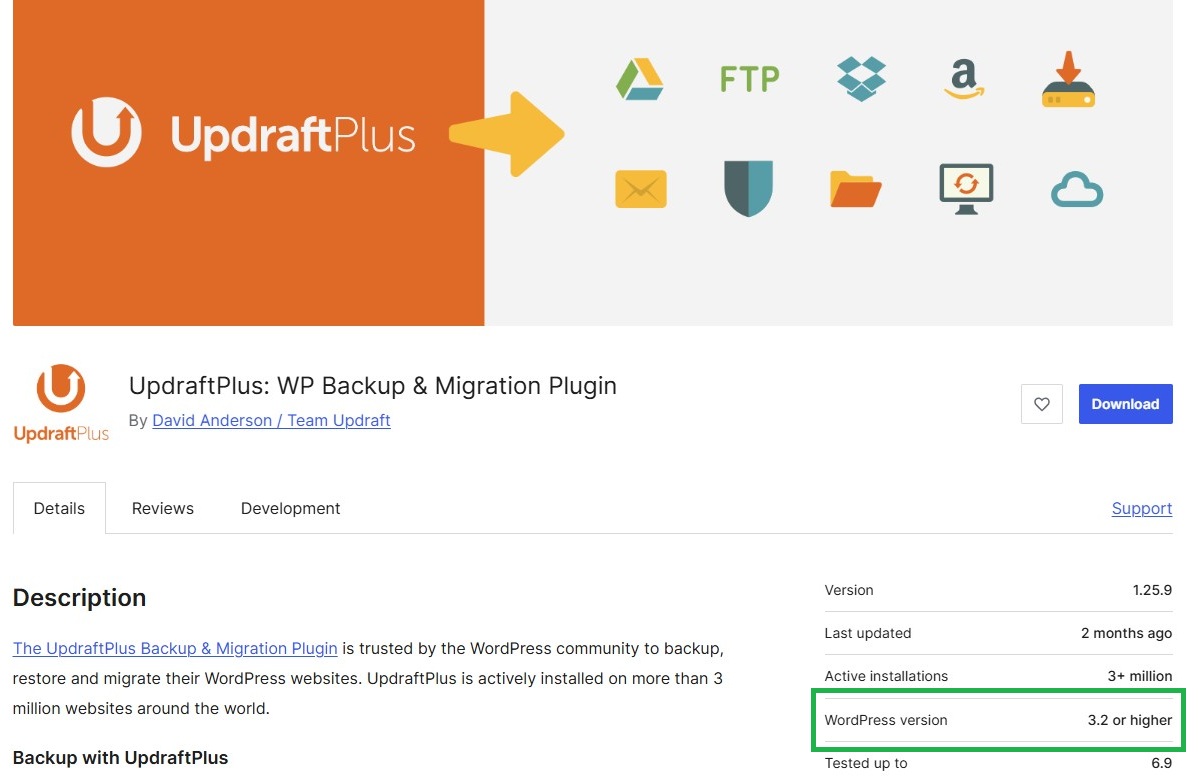
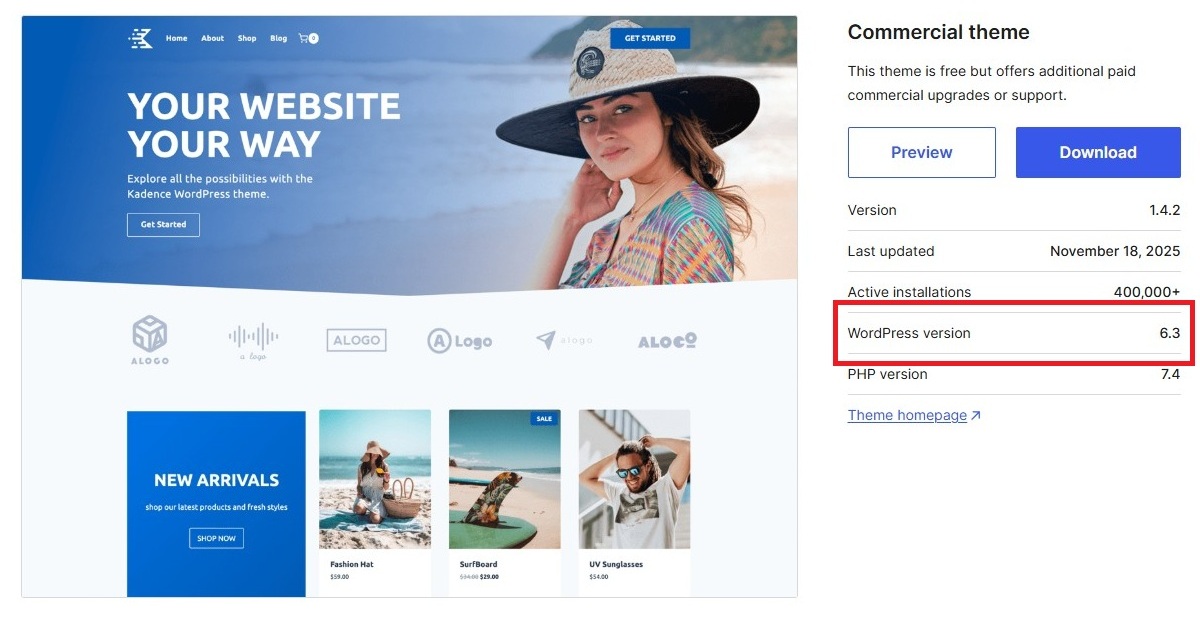
You can find out if a plugin or theme officially still supports WordPress version 6.2, by navigating to that plugin or theme page in the WordPress Repository and looking for the WordPress version information in the right-hand sidebar.
Below an example of a plugin that is compatible with ClassicPress:
This is what will be displayed if a theme does not work with WordPress 6.2 and thus is not compatible with ClassicPress:
Additionally, plugin or theme developers might decide to explicitly support ClassicPress. For plugins, developers will tag their software with ‘ClassicPress’. You can find all plugins currently tagged with ‘ClassicPress’ in the WordPress Plugin Repository on this list.
If in doubt, always contact the plugin or theme developers and ask if they plan to support ClassicPress. Tell them about the available tag for plugins in the WordPress Repository, and also about the ClassicPress Directory, so they can — if they want — promote their plugin or theme to a broader public.
If you are not 100% sure about the plans of the developers, always try to confirm with them. And start looking for alternatives, as listed below, or on the ClassicPress Directory, so you do not risk a bad surprise in the future.
The best thing to do, if you have the capacity and motivation, is to develop a new plugin or theme designated for ClassicPress, that covers the things your favorite software until now did. Of course, this is a huge amount of work and is usually suitable only for experienced developers. But at ClassicPress we have a thriving and eager-to-help community, thus feel free to join our support forum and ask for suggestions or help, if your favorite plugin or theme isn’t working with the best CMS there is. It might just be that an avid developer is around and ready to work on a fork of the original or develop new software. Head over to the ClassicPress docs to find the info that will get you started.
Important
Note that ClassicPress already provides some alternatives for major plugins such as WooCommerce, or Yoast SEO. If you switch to ClassicPress, you will want to have a look at these plugins. You can find them either in the ClassicPress Plugin Directory or consult below replacement list:
How can I indicate my plugin/theme is compatible with ClassicPress?
Plugins should be tagged ‘ClassicPress’ to allow users to easily find them when searching on the WordPress.org site or the Plugins screen in the ClassicPress admin panel.
You can find all plugins currently tagged with ‘ClassicPress’ in the WordPress Plugin Repository on this list.
Unfortunately WordPress does not support the ‘ClassicPress’ tag for themes, so in order to make the theme findable you should mention ‘ClassicPress’ in its description.
I think I found a bug – what do I do?
Bugs can be reported on the support forums or, if you know how to write a bug report, via GitHub. If logging via GitHub, please make sure to follow the template instructions: